Step 7: Navigate to Routes with Mandatory Parameters
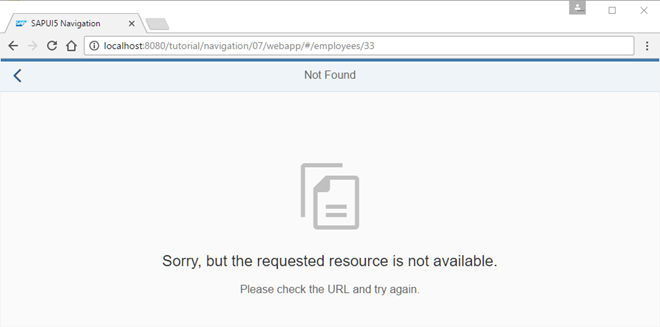
The detail page has to read the ID of the employee from the URL to fetch and display the
employee data from the server. If the employee was not found, for example, because an
invalid employee ID was passed on, we want to inform the user by displaying the
notFound target. Of course, the back navigation has to work as well
for this page.
Preview
Coding
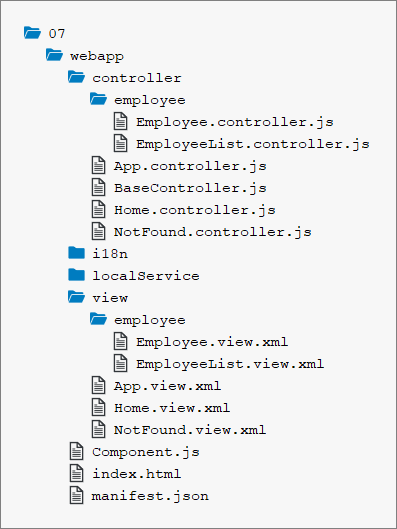
You can view and download all files in the Samples in the Demo Kit at Routing and Navigation - Step 7.
webapp/manifest.json
{
	"_version": "1.12.0",
	"sap.app": {
		...
	},
	"sap.ui": {
		...
	},
	"sap.ui5": {
		...
		"routing": {
			"config": {
				"routerClass": "sap.m.routing.Router",
				"type": "View",
				"viewType": "XML",
				"path": "sap.ui.demo.nav.view",
				"controlId": "app",
				"controlAggregation": "pages",
				"transition": "slide",
				"bypassed": {
					"target": "notFound"
				}
			},
			"routes": [{
				"pattern": "",
				"name": "appHome",
				"target": "home"
			}, {
				"pattern": "employees",
				"name": "employeeList",
				"target": "employees"
			}, {
				"pattern": "employees/{employeeId}",
				"name": "employee",
				"target": "employee"
			}],
			"targets": {
				"home": {
					"id": "home",
					"name": "Home",
					"level" : 1
				},
				"notFound": {
					"id": "notFound",
					"name": "NotFound",
					"transition": "show"
				},
				"employees": {
					"id": "employeeList",
					"path": "sap.ui.demo.nav.view.employee",
					"name": "EmployeeList",
					"level" : 2
				},
				"employee": {
					"id": "employee",
					"name": "employee.Employee",
					"level" : 3
				}
			}
		}
	}
}
From our data model (webapp/localService/metadata.xml or
webapp/localService/mockdata/Employees.json), you can see that
each employee entity is identified by an EmployeeID. We define a
new route that expects a mandatory employeeId in its pattern to
address an employee. Unlike the patterns we used before, this pattern has a dynamic
part. We create a new route employee and use
employees/{employeeId} as its pattern.
The {employeeId} part of the pattern is a mandatory parameter as
indicated by the curly brackets. The hash that contains an actual employee ID is
matched against that pattern at runtime.
The following hashes would match in our case: employees/2,
employees/7, employees/anInvalidId, and so on.
However, the hash employees/ will not match as it does not contain
an ID at all. The target of our route is employee. We create the
target employee with level
3. With that, we make sure that we have the correct slide animation
direction.
Next, we have to create the view employees.Employee; for better
illustration the path is not specified this time.
webapp/view/employee/Employee.view.xml (New)
<mvc:View
	controllerName="sap.ui.demo.nav.controller.employee.Employee"
	xmlns="sap.m"
	xmlns:mvc="sap.ui.core.mvc"
	xmlns:f="sap.ui.layout.form"
	busyIndicatorDelay="0">
	<Page
		id="employeePage"
		title="{i18n>EmployeeDetailsOf} {FirstName} {LastName}"
		showNavButton="true"
		navButtonPress=".onNavBack"
		class="sapUiResponsiveContentPadding">
		<content>
			<Panel
				id="employeePanel"
				width="auto"
				class="sapUiResponsiveMargin sapUiNoContentPadding">
				<headerToolbar>
					<Toolbar>
						<Title text="{i18n>EmployeeIDColon} {EmployeeID}" level="H2"/>
						<ToolbarSpacer />
					</Toolbar>
				</headerToolbar>
				<content>
					<f:SimpleForm
						minWidth="1024"
						editable="false"
						layout="ResponsiveGridLayout"
						labelSpanL="3" labelSpanM="3" emptySpanL="4" emptySpanM="4"
						columnsL="1" columnsM="1">
						<f:content>
							<Label text="{i18n>formFirstName}"/>
							<Text text="{FirstName}"/>
							<Label text="{i18n>formLastName}"/>
							<Text text="{LastName}"/>
							<Label text="{i18n>formAddress}"/>
							<Text text="{Address}"/>
							<Label text="{i18n>formCity}"/>
							<Text text="{City}, {Region}"/>
							<Label text="{i18n>formPostalCode}"/>
							<Text text="{PostalCode}"/>
							<Label text="{i18n>formPhoneHome}"/>
							<Text text="{HomePhone}"/>
							<Label text="{i18n>formCountry}"/>
							<Text text="{Country}"/>
						</f:content>
					</f:SimpleForm>
				</content>
			</Panel>
		</content>
	</Page>
</mvc:View>
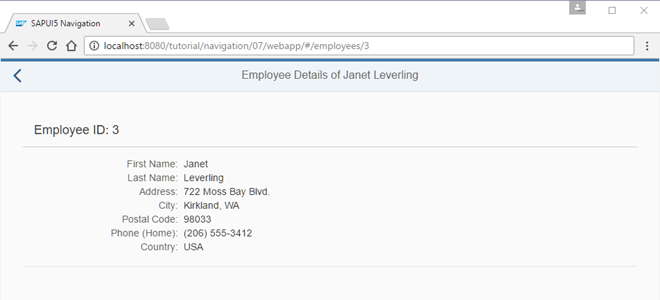
Create the file Employee.view.xml inside the
webapp/view/employee folder. This employee view displays master
data for an employee in a panel with a SimpleForm control: first
name, last name and so on. The data comes from a relative data binding that is set
on the view level as we can see in the controller later. As we are focusing on the
navigation aspects in this tutorial, we won't go into detail on the controls of the
view. Just copy the code.
webapp/controller/employee/Employee.controller.js (New)
sap.ui.define([
	"sap/ui/demo/nav/controller/BaseController"
], function (BaseController) {
	"use strict";
	return BaseController.extend("sap.ui.demo.nav.controller.employee.Employee", {
		onInit: function () {
			var oRouter = this.getRouter();
			oRouter.getRoute("employee").attachMatched(this._onRouteMatched, this);
			// Hint: we don't want to do it this way
			/*
			oRouter.attachRouteMatched(function (oEvent){
				var sRouteName, oArgs, oView;
				sRouteName = oEvent.getParameter("name");
				if (sRouteName === "employee"){
					this._onRouteMatched(oEvent);
				}
			}, this);
			*/
		},
		_onRouteMatched : function (oEvent) {
			var oArgs, oView;
			oArgs = oEvent.getParameter("arguments");
			oView = this.getView();

			oView.bindElement({
				path : "/Employees(" + oArgs.employeeId + ")",
				events : {
					change: this._onBindingChange.bind(this),
					dataRequested: function (oEvent) {
						oView.setBusy(true);
					},
					dataReceived: function (oEvent) {
						oView.setBusy(false);
					}
				}
			});
		},
		_onBindingChange : function (oEvent) {
			// No data for the binding
			if (!this.getView().getBindingContext()) {
				this.getRouter().getTargets().display("notFound");
			}
		}
	});
});
Now we create the file Employee.controller.js in the
webapp/controller/employee folder. In this controller file, we
want to detect which employee shall be displayed in order to show the employee's
data in the view. Therefore, we query the router for the route
employee and attach a private event listener function
_onRouteMatched to the matched event of this route.
In the event handler, we can access the arguments parameter from the
oEvent parameter that contains all parameters of the pattern.
Since this listener is only called when the route is matched, we can be sure that
the mandatory parameter employeeId is always available as a key in
arguments; otherwise the route would not have matched. The name
of the mandatory parameter employeeId correlates to the
{employeeId} from our pattern definition of the route
employee and thus to the value in the URL.
In _onRouteMatched we call bindElement() on the
view to make sure that the data of the specified employee is available in the view
and its controls. The ODataModel will handle the necessary data
requests to the back end in the background. While the data is loading, it would be
nice to show a busy indicator by simply setting the view to busy.
Therefore, we pass an events object to bindElement() to listen to
the events dataRequested and dataReceived. The
attached functions handle the busy state by calling
oView.setBusy(true) and oView.setBusy(false)
respectively.
We also add an event handler to the change event as a private
function _onBindingChange. It checks if the data could be loaded by
querying the binding context of the view. As seen in the previous steps, we will
display the notFound target if the data could not be loaded.
Instead of calling attachMatched(…) on a route we could also
call attachRouteMatched(…) directly on the router. However,
the event for the latter is fired for every matched event of any route in
the whole app. We don't use the latter because we would have to implement an
additional check for making sure that current route is the route that has
been matched. We want to avoid this extra overhead and register on the route
instead.
webapp/view/employee/EmployeeList.view.xml
<mvc:View
	controllerName="sap.ui.demo.nav.controller.employee.EmployeeList"
	xmlns="sap.m"
	xmlns:mvc="sap.ui.core.mvc">
	<Page
		id="employeeListPage"
		title="{i18n>EmployeeList}"
		showNavButton="true"
		navButtonPress=".onNavBack"
		class="sapUiResponsiveContentPadding">
		<content>
			<List id="employeeList" headerText="{i18n>ListOfAllEmployees}" items="{/Employees}">
				<items>
					<StandardListItem
						title="{FirstName} {LastName}"
						iconDensityAware="false"
						iconInset="false"
						type="Navigation"
						press=".onListItemPressed"/>
				</items>
			</List>
		</content>
	</Page>
</mvc:View>
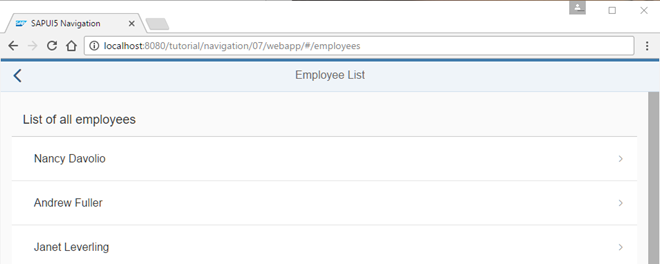
It's time to change the EmployeeList view so that we can navigate to
the new view. We set the attribute type of the StandardListItem
template to Navigation to make the item clickable and indicate a
navigation feature to the user. Additionally, we add an event handler for the
press event that is called when the user clicks on an employee
list item.
webapp/controller/employee/EmployeeList.controller.js
sap.ui.define([
	"sap/ui/demo/nav/controller/BaseController"
], function (BaseController) {
	"use strict";
	return BaseController.extend("sap.ui.demo.nav.controller.employee.EmployeeList", {
		onListItemPressed : function(oEvent){
			var oItem, oCtx;
			oItem = oEvent.getSource();
			oCtx = oItem.getBindingContext();
			this.getRouter().navTo("employee",{
				employeeId : oCtx.getProperty("EmployeeID")
			});
		}
	});
});
Finally, we add the handler onListItemPressed for the
press event to the EmployeeList controller. In
the handler, we determine the EmployeeID of the list item by
querying the binding context and accessing the property EmployeeID
from the data model.
Then we navigate to the employee route and pass a configuration
object on to the navTo method with the mandatory parameter
employeeId filled with the correct EmployeeID.
The router always makes sure that mandatory parameters as specified in the route's
pattern are set; otherwise an error is thrown.
webapp/i18n/i18n.properties
...
EmployeeDetailsOf=Employee Details of
EmployeeIDColon=Employee ID:
formFirstName=First Name
formLastName=Last Name
formAddress=Address
formCity=City
formPostalCode=Postal Code
formPhoneHome=Phone (Home)
formCountry=Country
Add the new texts to the i18n.properties file.
That's it. You can go to webapp/index.html#/employees and click on
any list item to be redirected to corresponding employee's details. Check also what
happens when you directly navigate to the following files:
-
webapp/index.html#/employees/3 -
webapp/index.html#/employees/33
Parent topic: Navigation and Routing Tutorial