Step 6: Create and Edit
Preview
Coding
You can view and download all files at OData V4 - Step 6.
webapp/controller/App.controller.js
sap.ui.define([
    "sap/ui/core/Messaging",
    "sap/ui/core/mvc/Controller",
    "sap/m/MessageToast",
    "sap/m/MessageBox",
    "sap/ui/model/Sorter",
    "sap/ui/model/Filter",
    "sap/ui/model/FilterOperator",
    "sap/ui/model/FilterType",
    "sap/ui/model/json/JSONModel"
], function (Messaging, Controller, MessageToast, MessageBox, Sorter, Filter, FilterOperator,
    FilterType, JSONModel) {
    "use strict";

    return Controller.extend("sap.ui.core.tutorial.odatav4.controller.App", {

        /**
         *  Hook for initializing the controller
         */
        onInit : function () {
            var oMessageModel = Messaging.getMessageModel(),
                oMessageModelBinding = oMessageModel.bindList("/", undefined, [],
                    new Filter("technical", FilterOperator.EQ, true)),
                oViewModel = new JSONModel({
                    busy : false,
                    hasUIChanges : false,
                    usernameEmpty : true,
                    order : 0
                });

            this.getView().setModel(oViewModel, "appView");
            this.getView().setModel(oMessageModel, "message");

            oMessageModelBinding.attachChange(this.onMessageBindingChange, this);
            this._bTechnicalErrors = false;
        },
...
We change the onInit method: The appView model
receives two additional properties, which we will use to control whether certain
controls in the view are enabled or visible during user entries. We also make the
MessageModel available to the view and add a
ListBinding. When the OData service reports errors while
writing data, the OData Model adds them to the MessageModel as
technical messages. Therefore we apply a filter to the ListBinding.
We register our own handler to the change event of that
ListBinding in order to capture any errors.
...
        onSort : function () {
            ...
        },
        _getText : function (sTextId, aArgs) {
            ...
        },

        _setUIChanges : function (bHasUIChanges) {
            if (this._bTechnicalErrors) {
                // If there is currently a technical error, then force 'true'.
                bHasUIChanges = true;
            } else if (bHasUIChanges === undefined) {
                bHasUIChanges = this.getView().getModel().hasPendingChanges();
            }
            var oModel = this.getView().getModel("appView");
            oModel.setProperty("/hasUIChanges", bHasUIChanges);
        }
    });
});
We add the _setUIChanges private method that lets us set the
property hasUIChanges of the appView model. Unless
there are currently technical messages in the MessageModel or it is
called with a given value for its bHasUIChanges parameter, the
method uses ODataModel.hasPendingChanges. That method returns
true if there are any changes that have not yet been written to
the service.
...
        onInit: function () {
            ...
        },
        onCreate : function () {
            var oList = this.byId("peopleList"),
                oBinding = oList.getBinding("items"),
                oContext = oBinding.create({
                    "UserName" : "",
                    "FirstName" : "",
                    "LastName" : "",
                    "Age" : "18"
                });

            this._setUIChanges();
            this.getView().getModel("appView").setProperty("/usernameEmpty", true);

            oList.getItems().some(function (oItem) {
                if (oItem.getBindingContext() === oContext) {
                    oItem.focus();
                    oItem.setSelected(true);
                    return true;
                }
            });
        },
        onRefresh
...
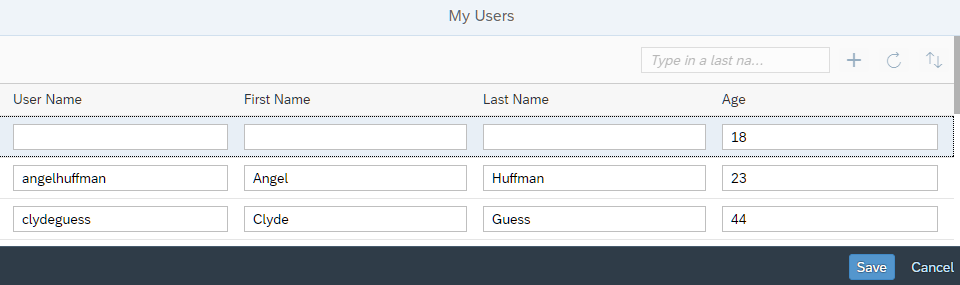
We add the onCreate event handler that responds to the
press event of the Add User button. We
use the create method of the ODataListBinding API
to create a new user with some initial data and insert it at the top of the table.
The create method returns the binding context of the new user. That
context provides a created method which returns a
Promise. The Promise is resolved when the new
user is successfully transferred to the OData service.
We also use the binding context returned by the create method to
focus and select the new row in which the new data can be entered.
...
        onRefresh: function () {
            ...
        },
        onSave : function () {
            var fnSuccess = function () {
                this._setBusy(false);
                MessageToast.show(this._getText("changesSentMessage"));
                this._setUIChanges(false);
            }.bind(this);

            var fnError = function (oError) {
                this._setBusy(false);
                this._setUIChanges(false);
                MessageBox.error(oError.message);
            }.bind(this);

            this._setBusy(true); // Lock UI until submitBatch is resolved.
            this.getView().getModel().submitBatch("peopleGroup").then(fnSuccess, fnError);
            this._bTechnicalErrors = false; // If there were technical errors, a new save resets them.
        },
        onSearch: function () {
            ...
        },
        ...
        _setUIChanges : function (bHasUIChanges) {
            ...
        },
        _setBusy : function (bIsBusy) {
            var oModel = this.getView().getModel("appView");
            oModel.setProperty("/busy", bIsBusy);
        }
    });
});
We create the onSave event handler, in which we call the
submitBatch method of the ODataModel API to
submit our changes. Because the changes we submit refer to the table, we need to
pass the update group peopleGroup that we declared in the table
binding.
The submitBatch method returns a Promise that is
rejected only if the batch request itself fails, for example, if the OData service
is unavailable or if there were authorization problems. It is resolved in all other
cases, also if the service returns errors for single requests that are contained in
the batch request. Therefore, we have to implement the error handling for single
requests differently.
We also define a _setBusy private function to lock the whole UI
while the data is submitted to the back end.
...
        onSort : function () {
            ...
        },

        onMessageBindingChange : function (oEvent) {
            var aContexts = oEvent.getSource().getContexts(),
                aMessages,
                bMessageOpen = false;

            if (bMessageOpen || !aContexts.length) {
                return;
            }

            // Extract and remove the technical messages
            aMessages = aContexts.map(function (oContext) {
                return oContext.getObject();
            });
            sap.ui.getCore().getMessageManager().removeMessages(aMessages);

            this._setUIChanges(true);
            this._bTechnicalErrors = true;
            MessageBox.error(aMessages[0].message, {
                id : "serviceErrorMessageBox",
                onClose : function () {
                    bMessageOpen = false;
                }
            });

            bMessageOpen = true;
        },
...
We implement the event handler for the change event of the
ListBinding to the MessageModel. We created
the ListBinding with a filter to only include technical messages.
That means that the change event will be fired with every change
but only technical messages will have a binding context. In case of technical
messages, we get the first one and display it as an error. We also make sure that
the toolbar for saving or discarding changes stays visible. We delete the technical
messages so that they do not accumulate.
...
        onRefresh: function () {
            ...
        },
        onResetChanges : function () {
            this.byId("peopleList").getBinding("items").resetChanges();
            this._bTechnicalErrors = false;
            this._setUIChanges();
        },
        onSearch: function () {
            ...
        },
...
The onResetChanges method handles discarding pending changes. It
uses the resetChanges method of the
ODataListBinding API to remove any such changes. Then it calls
the _setUIChanges private method to enable the elements of the
header toolbar again and hide the footer.
...
        onCreate: function () {
            ...
        },
        onInputChange : function (oEvt) {
            if (oEvt.getParameter("escPressed")) {
                this._setUIChanges();
            } else {
                this._setUIChanges(true);
                if (oEvt.getSource().getParent().getBindingContext().getProperty("UserName")) {
                    this.getView().getModel("appView").setProperty("/usernameEmpty", false);
                }
            }
        },
        onRefresh : function () {
            ...
        },
...
The onInputChange event handler manages entries in any of the
Input fields and triggers updates to the
appView model as needed. It does an extra check on the
UserName field to make sure that users cannot be saved without
a UserName. Otherwise the OData service would return errors because
UserName is a mandatory field.
webapp/view/App.view.xml
<mvc:View
controllerName="sap.ui.core.tutorial.odatav4.controller.App"
displayBlock="true"
xmlns="sap.m"
xmlns:mvc="sap.ui.core.mvc">
<Shell>
<App busy="{appView>/busy}" class="sapUiSizeCompact">
<pages>
<Page title="{i18n>peoplePageTitle}">
<content>
<Table
id="peopleList"
growing="true"
growingThreshold="10"
items="{
path: '/People',
parameters: {
$count: true,
$$updateGroupId : 'peopleGroup'
}
}">
<headerToolbar>
<OverflowToolbar>
<content>
<ToolbarSpacer/>
<SearchField
id="searchField"
width="20%"
placeholder="{i18n>searchFieldPlaceholder}"
enabled="{= !${appView>/hasUIChanges}}"
search=".onSearch"/>
<Button
id="addUserButton"
icon="sap-icon://add"
tooltip="{i18n>createButtonText}"
press=".onCreate">
<layoutData>
<OverflowToolbarLayoutData priority="NeverOverflow"/>
</layoutData>
</Button>
<Button
id="refreshUsersButton"
icon="sap-icon://refresh"
enabled="{= !${appView>/hasUIChanges}}"
tooltip="{i18n>refreshButtonText}"
press=".onRefresh"/>
<Button
id="sortUsersButton"
icon="sap-icon://sort"
enabled="{= !${appView>/hasUIChanges}}"
tooltip="{i18n>sortButtonText}"
press=".onSort"/>
</content>
</OverflowToolbar>
</headerToolbar>
<columns>
<Column id="userNameColumn">
<Text text="{i18n>userNameLabelText}"/>
</Column>
<Column id="firstNameColumn">
<Text text="{i18n>firstNameLabelText}"/>
</Column>
<Column id="lastNameColumn">
<Text text="{i18n>lastNameLabelText}"/>
</Column>
<Column id="ageColumn">
<Text text="{i18n>ageLabelText}"/>
</Column>
</columns>
<items>
<ColumnListItem>
<cells>
<Input
value="{UserName}"
valueLiveUpdate="true"
liveChange=".onInputChange"/>
</cells>
<cells>
<Input
value="{FirstName}"
liveChange=".onInputChange"/>
</cells>
<cells>
<Input
value="{LastName}"
liveChange=".onInputChange"/>
</cells>
<cells>
<Input
value="{Age}"
valueLiveUpdate="true"
liveChange=".onInputChange"/>
</cells>
</ColumnListItem>
</items>
</Table>
</content>
<footer>
<Toolbar visible="{appView>/hasUIChanges}">
<ToolbarSpacer/>
<Button
id="saveButton"
type="Emphasized"
text="{i18n>saveButtonText}"
enabled="{= ${message>/}.length === 0 && ${appView>/usernameEmpty} === false }"
press=".onSave"/>
<Button
id="doneButton"
text="{i18n>cancelButtonText}"
press=".onResetChanges"/>
</Toolbar>
</footer>
</Page>
</pages>
</App>
</Shell>
</mvc:View>
We add the $$updateGroupId: 'peopleGroup' parameter to the table.
This means that changes in the table are not sent to the service immediately but
instead are collected until we explicitly send them.
We add a new Add User button to the overflow toolbar in the
table header, and define a footer toolbar that contains Save
and Cancel buttons that we can display or hide through the
appView model. We can disable the Save
button separately, for example when a user enters invalid data.
Finally, we add the liveChange="onInputChange" event handler to the
table cells to make it possible to react to user input. In addition, we set the
valueLiveUpdate properties for the fields for
UserName and Age. That makes sure that the SAPUI5 types validate
the field content with each keystroke.
Creation via a form is demonstrated in our Sales Orders sample app.
webapp/i18n/i18n.properties
# Toolbar
#XBUT: Button text for save
saveButtonText=Save

#XBUT: Button text for cancel
cancelButtonText=Cancel

#XBUT: Button text for add user
createButtonText=Add User


#XTOL: Tooltip for sort
sortButtonText=Sort by Last Name
...
# Messages
#XMSG: Message for user changes sent to the service
changesSentMessage=User data sent to the server
...
We add the new message texts.
Parent topic: OData V4 Tutorial
Previous: Step 5: Batch Groups
Next: Step 7: Delete