Step 13: Element Binding
Preview
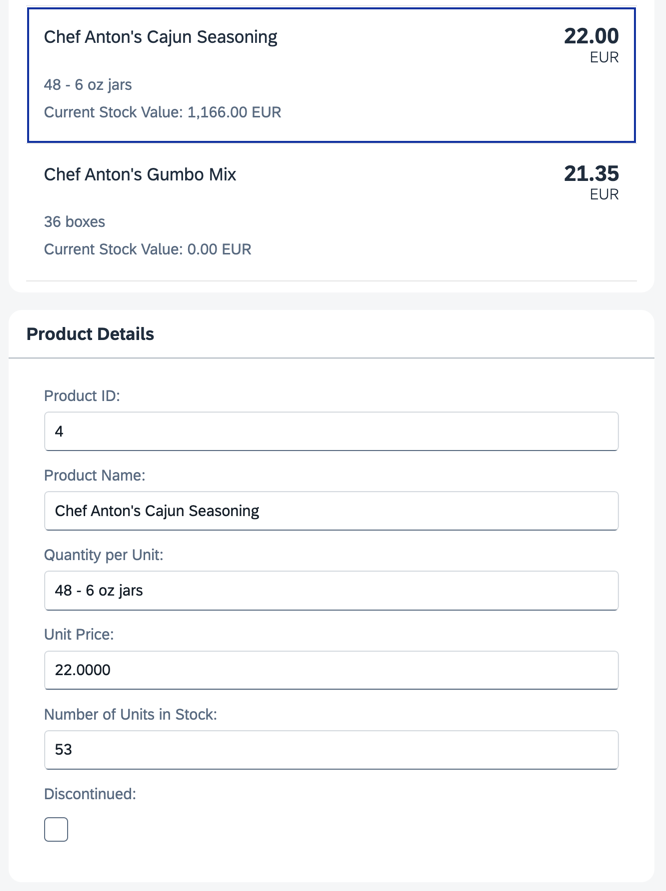
Coding
You can view and download all files in the Demo Kit at Data Binding - Step 13.
-
In the
App.view.xmlfile, add apressevent handler to the items in the list. Below the panel with the list, add a new panel with ansap.m.SimpleForm. To populate the form with data, we bind the entire panel to the path of the element you clicked in the list.webapp/view/App.view.xml
... <Panel headerText="{i18n>panel3HeaderText}" class="sapUiResponsiveMargin" width="auto"> <List headerText="{i18n>productListTitle}" items="{products>/Products}"> <items> <ObjectListItem press=".onItemSelected" type="Active" title="{products>ProductName}" number="{ parts: [ {path: 'products>UnitPrice'}, {path: '/currencyCode'} ], type: 'Currency', formatOptions: { showMeasure: false } }" numberUnit="{/currencyCode}"> <attributes> <ObjectAttribute text="{products>QuantityPerUnit}"/> <ObjectAttribute title="{i18n>stockValue}" text="{ parts: [ {path: 'products>UnitPrice'}, {path: 'products>UnitsInStock'}, {path: '/currencyCode'} ], formatter: '.formatStockValue' }"/> </attributes> </ObjectListItem> </items> </List> </Panel> <Panel id="productDetailsPanel" headerText="{i18n>panel4HeaderText}" class="sapUiResponsiveMargin" width="auto"> <form:SimpleForm editable="true" layout="ColumnLayout"> <Label text="{i18n>ProductID}"/> <Input value="{products>ProductID}"/> <Label text="{i18n>ProductName}"/> <Input value="{products>ProductName}"/> <Label text="{i18n>QuantityPerUnit}"/> <Input value="{products>QuantityPerUnit}"/> <Label text="{i18n>UnitPrice}"/> <Input value="{products>UnitPrice}"/> <Label text="{i18n>UnitsInStock}"/> <Input value="{products>UnitsInStock}"/> <Label text="{i18n>Discontinued}"/> <CheckBox selected="{products>Discontinued}"/> </form:SimpleForm> </Panel> </mvc:View> -
In the controller, add a new function
onItemsSelected, which binds the newly created panel to the correct item whenever it's pressed.webapp/controller/App.controller.js
sap.ui.define([
	"sap/m/library",
	"sap/ui/core/mvc/Controller",
	"sap/ui/model/type/Currency"
], (mobileLibrary, Controller, Currency) => {
	"use strict";

	return Controller.extend("ui5.databinding.controller.App", {
		formatMail(sFirstName, sLastName) {
			const oBundle = this.getView().getModel("i18n").getResourceBundle();

			return mobileLibrary.URLHelper.normalizeEmail(
				sFirstName + "." + sLastName + "@example.com",
				oBundle.getText("mailSubject", [sFirstName]),
				oBundle.getText("mailBody"));
		},

		formatStockValue(fUnitPrice, iStockLevel, sCurrCode) {
			const oCurrency = new Currency();
			return oCurrency.formatValue([fUnitPrice * iStockLevel, sCurrCode], "string");
		},

		onItemSelected(oEvent) {
			const oSelectedItem = oEvent.getSource();
			const oContext = oSelectedItem.getBindingContext("products");
			const sPath = oContext.getPath();
			const oProductDetailPanel = this.byId("productDetailsPanel");
			oProductDetailPanel.bindElement({ path: sPath, model: "products" });
		}
	});
});
-
Lastly, add the new texts to the
i18n.propertiesandi18n_de.propertiesfiles.webapp/i18n/i18n.properties
...
# Screen titles
panel1HeaderText=Data Binding Basics
panel2HeaderText=Address Details
panel3HeaderText=Aggregation Binding
panel4HeaderText=Product Details

...

# Product Details
ProductID=Product ID
ProductName=Product Name
QuantityPerUnit=Quantity per Unit
UnitPrice=Unit Price
UnitsInStock=Number of Units in Stock
Discontinued=Discontinued
webapp/i18n/i18n_de.properties
# Screen titles
panel1HeaderText=Data Binding Grundlagen
panel2HeaderText=Adressdetails
panel3HeaderText=Aggregation Binding
panel4HeaderText=Produktdetails

...

# Product Details
ProductID=Produkt-ID
ProductName=Produktname
QuantityPerUnit=Menge pro Einheit
UnitPrice=Preis pro Einheit
UnitsInStock=Lagerbestand
Discontinued=Eingestellt
Now, you can click on an element in the list and view its details in the panel below. You can even edit these details, and the changes are directly reflected in the list because we use two-way binding.
Element bindings can also be relative to their parent context.
Parent topic: Data Binding Tutorial